Security Insights
Security Insights is in beta. To request access, contact Harness Support.
Security Insights in SEI 2.0 focuses on understanding vulnerability risk across your application and infrastructure assets. Rather than looking at security finding in isolation, SEI surfaces signals that help teams assess exposure, remediation effectiveness, and long-lived risk over time.
This experience is designed to provide a clear, actionable view of security health, whether you're monitoring organization-wide trends or drilling into specific teams and assets. By combining time-based analysis with asset-level filtering, SEI 2.0 helps you identify where risk is accumulating, how quickly vulnerabilities are resolved, and where remediation efforts may need to be prioritized.
You can use the Security Insights dashboard on the Security tab of the Insights page to analyze vulnerability risk across your application and infrastructure assets. Select a relative time range (such as Last 30 Days) or define a custom date range, and switch between Weekly, Monthly, or Quarterly views.
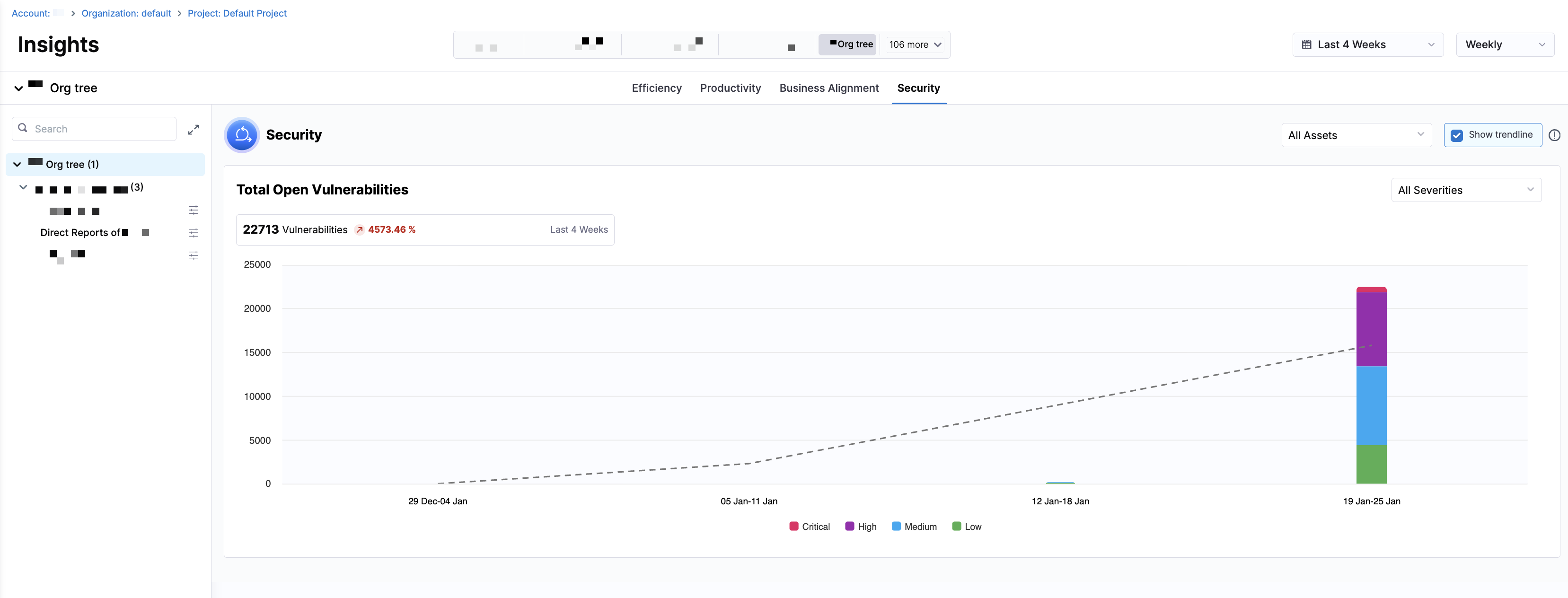
To scope the Security Insights widgets by an asset type, click the All Assets dropdown menu and select All Assets, Repositories, Container Images, IAC Files, or CLI. All metrics and visualizations update automatically based on the selected time range, aggregation, and asset scope. Click the Show trendline checkbox to overlay trendlines across all Security visualizations. Trendlines help you assess whether security metrics are improving, regressing, or remaining stable over time.
Trendlines use the Ordinary Least Squares (OLS) regression method to identify patterns and direction in your data over the selected time range.
Security Insights widgets
The Security Insights dashboard on the Insights page provides a set of core metrics that highlight vulnerability volume, aging, and remediation trends. Each widget includes a severity filter that allows you to view data by All Severities, Critical, High, Medium, or Low. Selecting a severity updates the metric value and the bar charts.
Total Open Vulnerabilities
Total Open Vulnerabilities tracks the cumulative count of unresolved security vulnerabilities across your codebase and infrastructure over time. This metric represents the total number of vulnerabilities that have been identified but not yet resolved.
The trend line shows whether the total number of open vulnerabilities is increasing or decreasing over time.
This metric helps you understand your overall security debt. A high or increasing value indicates accumulating vulnerabilities that need attention, while a declining trend reflects effective remediation efforts.
High open vulnerability counts increase security risk and expand the potential attack surface. Tracking this metric helps prioritize security work, allocate remediation resources, and demonstrate improvements in security posture to stakeholders.
The Vulnerabilities Drilldown section displays a list of all currently unresolved vulnerabilities contributing to the total count. This drilldown helps teams identify what is open right now and where exposure exists across assets.
| Column Name | Description |
|---|---|
| Vulnerability ID | Unique identifier for the vulnerability (for example, a CVE). |
| Issue ID | Identifier assigned by the originating security tool for the specific finding or instance of the vulnerability. |
| Title | A short description of the vulnerability. |
| Created Date | When the vulnerability was first detected. |
| Severity | Severity level of the vulnerability (Critical, High, Medium, or Low). |
| Asset Type | The asset category where the vulnerability exists (Repository, Container Image, or Cloud Resource). |
Each vulnerability in the list links back to the originating security tool (for example, Snyk). Click a row to open the full finding and remediation details. This drilldown is scoped to open vulnerabilities only and reflects the selected time range, asset scope, and severity.
At higher levels of the Org Tree (for example, organization or director-level nodes), the dashboard displays a summarized view of the security metrics. When you navigate to a leaf team in the Org Tree, you can click View Drilldown in each widget to display the vulnerability data associated with that team.
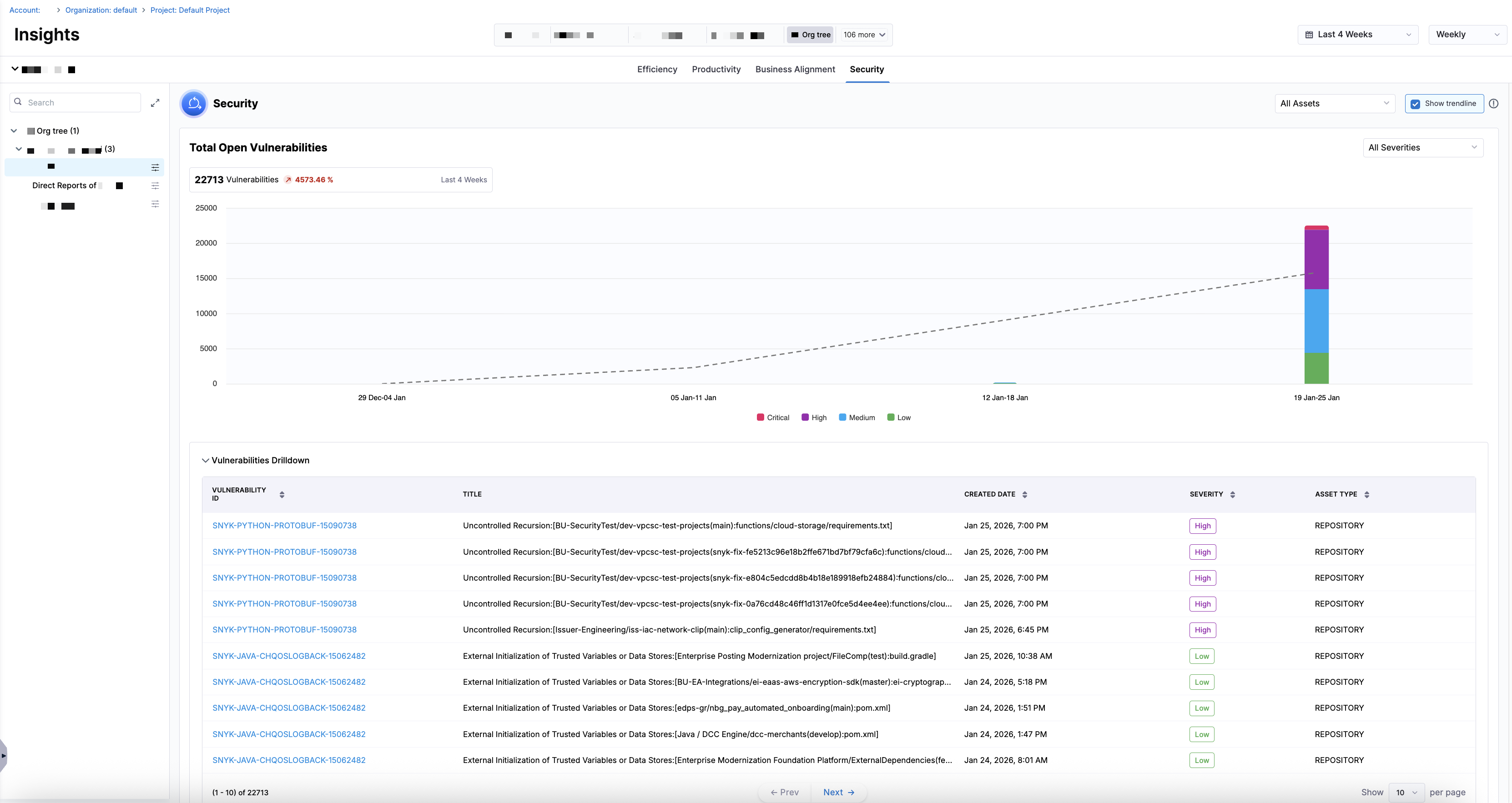
These drilldowns allows engineering leaders to monitor security trends at scale while providing teams with clear, actionable visibility into the vulnerabilities they own.