Blue-Green Deployment for MIG
This guide explains how to configure and execute deployments for Google Cloud Managed Instance Groups using the Blue-Green strategy in Harness.
Prerequisites for Blue-Green deployment
Before setting up your Blue-Green deployment, ensure you have the following GCP resources already provisioned:
- Backend Service: A GCP backend service configured with appropriate health checks
- Instance Group: At least one Managed Instance Group must be pre-configured
- Cloud Service Mesh: HTTPRoute or GRPCRoute resources configured for traffic management. The route must be configured with the backend service as a destination
These resources form the foundation of your Blue-Green deployment infrastructure. Harness will manage the deployment lifecycle, but these core GCP resources must exist beforehand.
Select deployment strategy
After configuring your service, environment, and infrastructure, navigate to the Execution tab to configure your deployment strategy. Harness provides two options:
Blue-Green Strategy
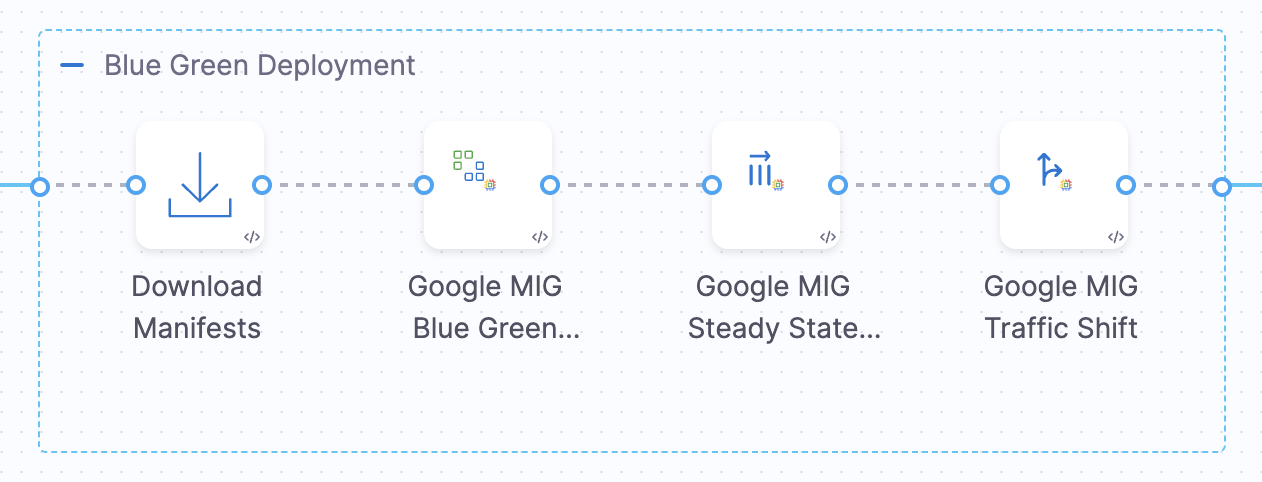
When you select the Blue-Green execution strategy, Harness automatically adds a pre-configured step group containing all the necessary deployment steps. This automated setup eliminates manual configuration and ensures best practices for zero-downtime deployments, with instant rollback. The step group includes Download Manifests, Google MIG Blue Green Deploy, Google MIG Steady State, and Google MIG Traffic Shift steps.
Blank Canvas
If you choose Blank Canvas, you need to manually add and configure the deployment steps within the step group. This option provides flexibility to customize your deployment workflow. You can choose from these four steps: Download Manifests, Google MIG Blue Green Deploy, Google MIG Steady State, and Google MIG Traffic Shift.
For a functional Blue-Green deployment, three steps are mandatory: Download Manifests (fetches your configuration files), Google MIG Blue Green Deploy (creates or updates the MIG without shifting traffic), and Google MIG Traffic Shift (shifts production traffic to the new version). The Google MIG Steady State step is optional but strongly recommended for production deployments to verify instance health before shifting traffic.
Blue-Green deployment step group
When you select the Blue-Green strategy, Harness automatically configures the Google MIG Blue Green Deploy step group with four essential steps that orchestrate the entire deployment lifecycle:
- Download Manifests - Downloads your MIG configuration files from the specified manifest store
- Google MIG Blue Green Deploy - Creates or updates the MIG and orchestrates the Blue-Green deployment
- Google MIG Steady State - Verifies that all instances reach a healthy, stable state
- Google MIG Traffic Shift - Manages traffic distribution between stable and stage environments using Cloud Service Mesh
These steps execute sequentially, ensuring each phase completes successfully before proceeding to the next.
How Blue-Green deployment works
This section assumes you have already configured your backend service, at least one Managed Instance Group, and Cloud Service Mesh (HTTPRoute or GRPCRoute) in GCP as outlined in the Prerequisites section.
Blue-Green deployment maintains two identical environments that alternate roles with each deployment, ensuring zero downtime and instant rollback capabilities. You can deploy with one or two MIG environments.
First Deployment (1 MIG environment)
When you provide only one environment configuration, no labels are required. Harness automatically manages the entire Blue-Green setup:
What you provide:
- One backend service path (e.g.,
projects/my-project/regions/us-central1/backendServices/my-service) - One MIG name (e.g.,
my-app-mig)
What Harness does automatically:
- Deploys your new version to the MIG you provided
- Creates a second backend service by cloning the provided backend service configuration (appends a
-1suffix to the backend service name) - Creates a second MIG based on your configuration
- Adds the
harness-blue-green-version: stablelabel to all instance configurations in the newly deployed MIG (serves production traffic) - Adds the
harness-blue-green-version: stagelabel to all instance configurations in the second MIG (ready for next deployment) - Waits for the newly deployed MIG to reach steady state before proceeding
- Shifts 100% of traffic to the stable environment through Cloud Service Mesh
After the first deployment completes, you have two MIGs alternating between stable and stage roles. No manual labeling is needed—Harness handles everything.
Subsequent Deployments (2 MIG environments)
For all deployments after the first, Harness uses labels to identify which environment is stable (production) and which is stage (deployment target):
How it works:
- Identify Environments: Harness checks the
harness-blue-green-versionlabel in the MIG's instance configurations to determine which MIG is currentlystable(serving production traffic) and which isstage(ready for new deployment) - Deploy to Stage: The new version deploys to whichever MIG carries the
stagelabel. Your production traffic continues flowing to thestableMIG—no disruption occurs - Verify and Shift Traffic: Once the stage environment passes health checks, traffic gradually shifts from
stabletostageusing Cloud Service Mesh route updates - Swap Labels: After 100% traffic is successfully shifted to the newly deployed MIG, Harness updates the labels:
- The newly deployed MIG's label changes from
harness-blue-green-version: stagetoharness-blue-green-version: stable(now serving production) - The previously stable MIG's label changes from
harness-blue-green-version: stabletoharness-blue-green-version: stage(ready for the next deployment)
- The newly deployed MIG's label changes from
This alternating pattern continues indefinitely. Each deployment targets whichever MIG is labeled as stage, and the labels swap after successful traffic cutover.
Important: If you manually create two MIGs before the first deployment, you must add the harness-blue-green-version: stable and harness-blue-green-version: stage labels to the instance configurations yourself to indicate which is which. Otherwise, let Harness create the second environment automatically during the first deployment.
Deployment steps overview
The Blue-Green deployment workflow consists of four coordinated steps that work together to achieve zero-downtime deployments. Each step performs a specific function in the deployment lifecycle, from downloading configurations to shifting production traffic. Understanding these steps helps you troubleshoot deployments and customize the workflow for your exact requirements.
1. Download Manifests
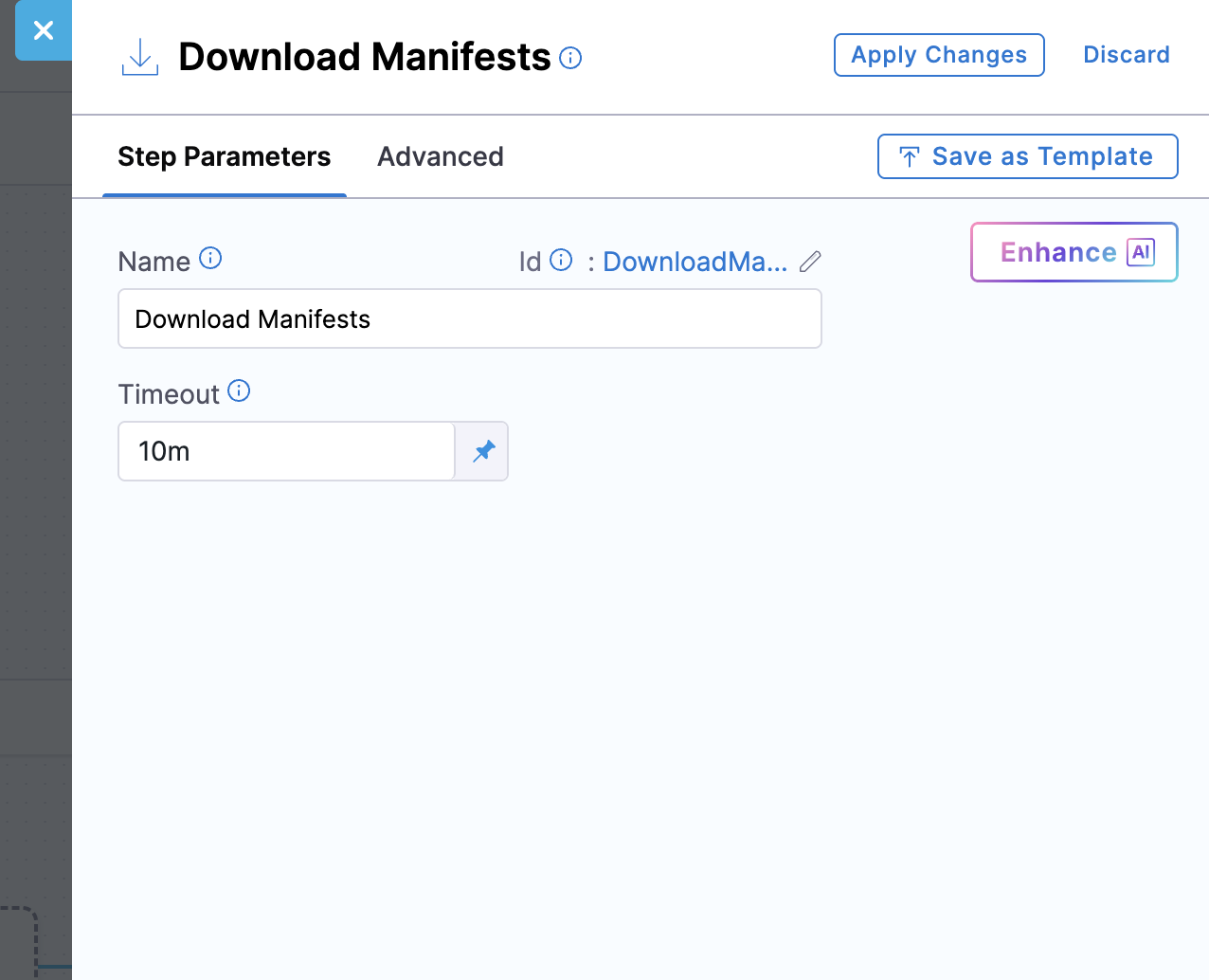
This step downloads all manifest files specified in your service configuration and makes them available for subsequent deployment steps. Harness fetches the files from your configured manifest store (Harness File Store, Git, or other supported sources), validates their JSON structure, and stages them for use by the deployment steps.
Step parameters:
- Name: Display name for the step (default: Download Manifests)
- Timeout: Maximum time allowed for downloading manifests (default: 10m)
YAML Example
- step:
    type: DownloadManifests
    name: DownloadManifests
    identifier: DownloadManifests
    spec: {}
    failureStrategies: []
2. Google MIG Blue Green Deploy
This step orchestrates the Blue-Green deployment by creating or updating MIGs for both stable and stage environments. During the first deployment, if only one environment configuration is provided, it creates another complete environment (backend service and MIG) from your configuration. For subsequent deployments, it deploys the new version to whichever environment currently holds the stage label. The step handles instance template creation or updates, MIG creation or updates, backend service configuration, and environment labeling.
Important: This step only creates or updates the MIG infrastructure. It does not shift any production traffic. Traffic shifting happens exclusively in the Google MIG Traffic Shift step, giving you control over when to expose the new version to users.
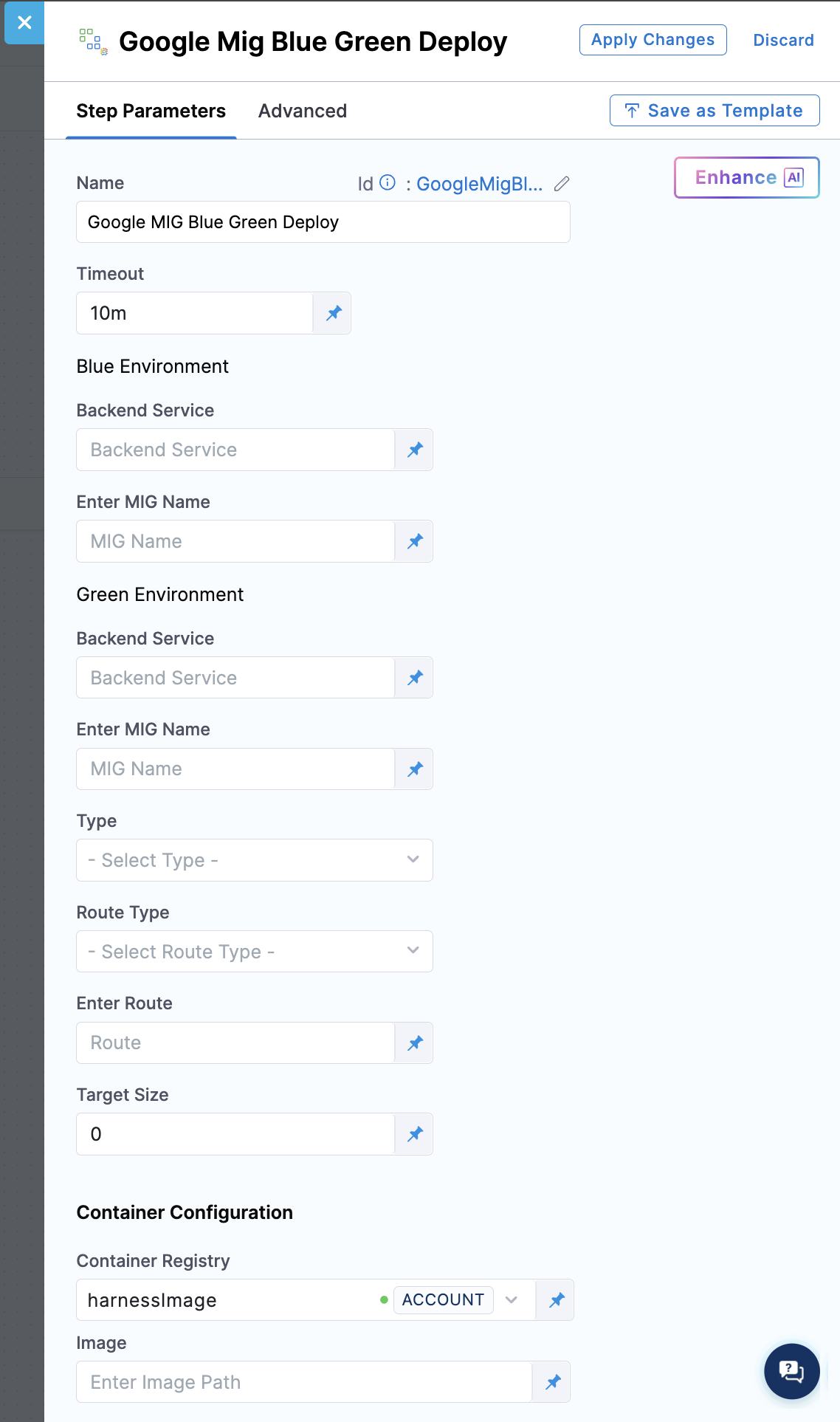
Step parameters:
Blue Environment (First Environment):
Backend Service: This field specifies the full GCP resource path to your backend service for the first environment. The format should be: projects/PROJECT_ID/regions/REGION/backendServices/SERVICE_NAME. You should ensure the backend service exists and is correctly configured with health checks before deployment.
Enter MIG Name: This field specifies the name of the Managed Instance Group for your first environment (e.g., my-app-mig). This should be a simple name, not a full resource path. You should choose a meaningful name that reflects your application or service.
Green Environment (Second Environment) (Optional for first deployment):
Backend Service: This field specifies the full GCP resource path to your backend service for the second environment. The format should be: projects/PROJECT_ID/regions/REGION/backendServices/SERVICE_NAME. This field is optional for the first deployment. If you leave it empty, Harness automatically creates a second backend service by cloning your first environment configuration with a -1 suffix. If you provide both environments on first deployment, ensure each MIG has the appropriate harness-blue-green: stable or harness-blue-green: stage label. For subsequent deployments, this field is automatically populated. Both backend services work together to enable zero-downtime Blue-Green deployments with instant rollback capability.
Enter MIG Name: This field specifies the name of the Managed Instance Group for your second environment. This field is optional for the first deployment. If you do not provide it, Harness creates it automatically by appending -1 to your first MIG name (e.g., my-app-mig-1). This second MIG forms the other half of your Blue-Green setup, alternating with the first MIG between stable and stage roles. After the first deployment completes, both MIGs exist permanently and swap roles with each deployment.
Type: This field determines how traffic is shifted between stable and stage environments. Currently, only the CSM (Cloud Service Mesh) option is supported, which uses HTTPRoute or GRPCRoute resources for advanced, granular traffic control, including weighted routing, header-based routing, and service-to-service communication. CSM is ideal for microservice architectures and service-mesh deployments.
Route Type: This field specifies the Cloud Service Mesh route resource type that controls traffic distribution. The HTTPRoute option is for HTTP and HTTPS traffic and supports path matching, header matching, and query parameter routing. The GRPCRoute option is for gRPC services with method-level routing. This field is only applicable when the Type field is set to CSM. The route resource must exist in your GCP project and be configured appropriately to reference both backend services before deployment.
Enter Route: This field specifies the full GCP resource path to your Cloud Service Mesh route resource. The format should be: projects/PROJECT_ID/locations/global/httpRoutes/ROUTE_NAME (for HTTPRoute) or projects/PROJECT_ID/locations/global/grpcRoutes/ROUTE_NAME (for GRPCRoute). This route controls how traffic is distributed between your stable and stage environments by adjusting weights. Harness updates this route during traffic shifting to gradually move traffic from the current stable version to the newly deployed stage version.
Target Size: This field specifies the desired number of instances to maintain in the newly deployed MIG. You can select a specific number to control deployment size (e.g., 3, 5, 10). This allows you to deploy with a particular capacity requirement. This is useful when you want to validate a new version with fewer instances before scaling up, or when you need to adjust capacity for specific deployments.
Container Configuration:
Container Registry: This field specifies the Harness connector that provides authentication to your container registry (e.g., Docker Hub, GCR, GAR, ECR). This connector pulls the deployment plugin image, which executes the deployment operations. The plugin runs in a containerized environment and needs access to pull its image from the registry. You should select a connector with appropriate read permissions to the registry where your plugin images are stored. This is part of Harness's containerized step execution model.
Image: This field specifies the full path to the deployment plugin container image used to execute this deployment step. This image contains the deployment logic and tools needed to interact with GCP APIs, create and update MIGs, configure backend services, and manage Cloud Service Mesh routes. Use the official Harness image: harness/google-mig-bluegreen-deploy:0.0.1-linux-amd64 for Blue-Green deployments.
For the first deployment, you can provide only the first environment configuration, and Harness will automatically clone it with a -1 suffix to create the second environment. Alternatively, you can provide both blue and green environments, but ensure each MIG has the appropriate harness-blue-green: stable or harness-blue-green: stage label.
YAML Example
- step:
    type: GoogleMigBlueGreenDeploy
    name: BlueGreen_Deploy
    identifier: BlueGreen_Deploy
    spec:
      blueEnvironment:
        backendService: projects/PROJECT_ID/locations/global/backendServices/BACKEND_SERVICE_NAME
        mig: MIG_NAME
      trafficConfig:
        type: CSM
            spec:
          type: GRPCRoute
          route: projects/PROJECT_ID/locations/global/grpcRoutes/ROUTE_NAME
      targetSize: 1
      connectorRef: GCP_CONNECTOR_ID
      image: harness/google-mig-bluegreen-deploy:0.0.1-linux-amd64
      imagePullPolicy: Always
      resources:
        limits:
          memory: 512Mi
          cpu: 0.5
      outputVariables: []
    timeout: 10m
3. Google MIG Steady State
This step verifies that the deployed MIG has reached a stable, healthy state before proceeding with traffic shifting. Harness checks that the MIG status is stable and that all instances use the correct instance template version. The step fails if the MIG doesn't achieve steady state within the configured timeout. This validation prevents premature traffic shifting to an unhealthy environment and is critical for zero-downtime deployments.
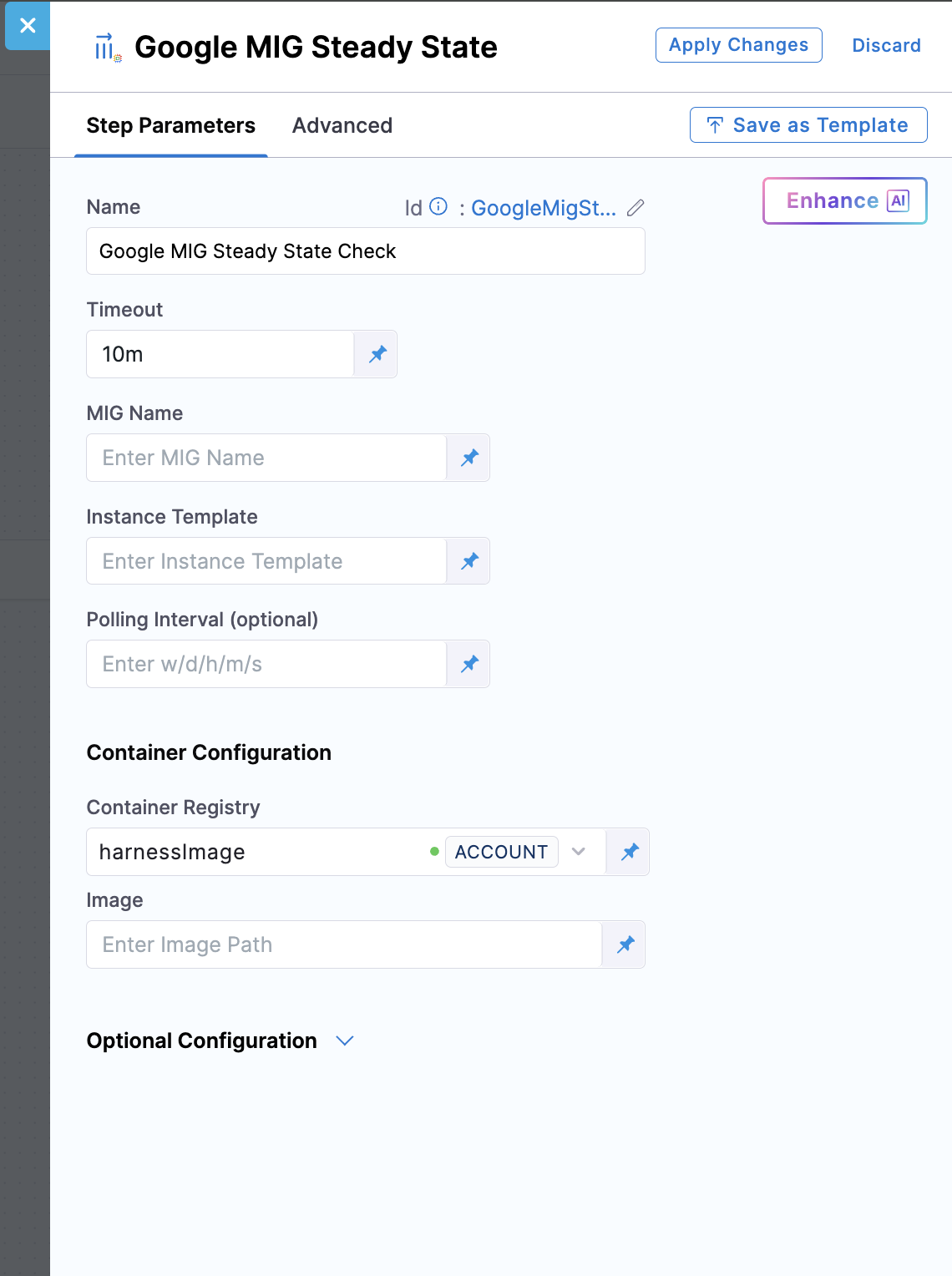
Step parameters:
MIG Name: Specify the name of the Managed Instance Group that Harness should monitor for steady state. Harness continuously polls this MIG's status to verify that the status is stable and all instances are using the expected instance template. This ensures your deployment is fully ready before allowing traffic to reach it.
Instance Template: Specify the instance template name that Harness should verify. Harness checks that the MIG is using this specific template version. Note that during a rolling update, a MIG can temporarily have multiple templates, which is expected behavior. Once the rolling update completes, the MIG will be fully updated with the latest applied template. The template name typically includes version information or timestamps (e.g., my-app-template-v2-20260120).
Polling Interval (optional): Specify how frequently Harness checks the MIG status during steady state verification (e.g., 30s, 1m, 2m). Shorter intervals (10-30 seconds) provide faster detection of steady state and quicker deployments but generate more API calls to GCP. Longer intervals (1-2 minutes) reduce API load but slow down deployment feedback. The default is typically 30 seconds. Balance between deployment speed and API rate limits based on your requirements.
Container Configuration:
Container Registry: Harness connector for authenticating to your container registry (Docker Hub, GCR, GAR, ECR). This connector pulls the deployment plugin image that executes the deployment operations.
Image: Full path to the deployment plugin container image for this step. Use the official Harness image: harness/google-mig-steady-state:0.0.1-linux-amd64 for steady state verification.
YAML Example
- step:
    identifier: mig_steady_state_check
    type: GoogleMigSteadyState
    name: Steady_State_Check
  spec:
      mig: <+pipeline.stages.Deploy.spec.execution.steps.STEP_GROUP_ID.steps.DEPLOY_STEP_ID.GoogleMigBlueGreenDeployOutcome.stageMig>
      instanceTemplate: <+pipeline.stages.Deploy.spec.execution.steps.STEP_GROUP_ID.steps.DEPLOY_STEP_ID.GoogleMigBlueGreenDeployOutcome.rollbackData.deploymentMetadata.stage.instanceTemplate>
      connectorRef: GCP_CONNECTOR_ID
      image: harness/google-mig-steady-state:0.0.1-linux-amd64
      imagePullPolicy: Always
      resources:
        limits:
          memory: 512Mi
          cpu: 0.5
      outputVariables: []
4. Google MIG Traffic Shift
This step gradually or instantly shifts production traffic between your stable and stage environments. It enables safe, controlled rollouts by allowing you to move traffic incrementally (e.g., 10% → 25% → 50% → 100%) while monitoring application metrics, error rates, and performance. If issues arise at any traffic percentage, you can halt the shift or roll back. This step supports multiple traffic shift steps in sequence for phased rollouts. This is the key step that makes Blue-Green deployments safe for production.
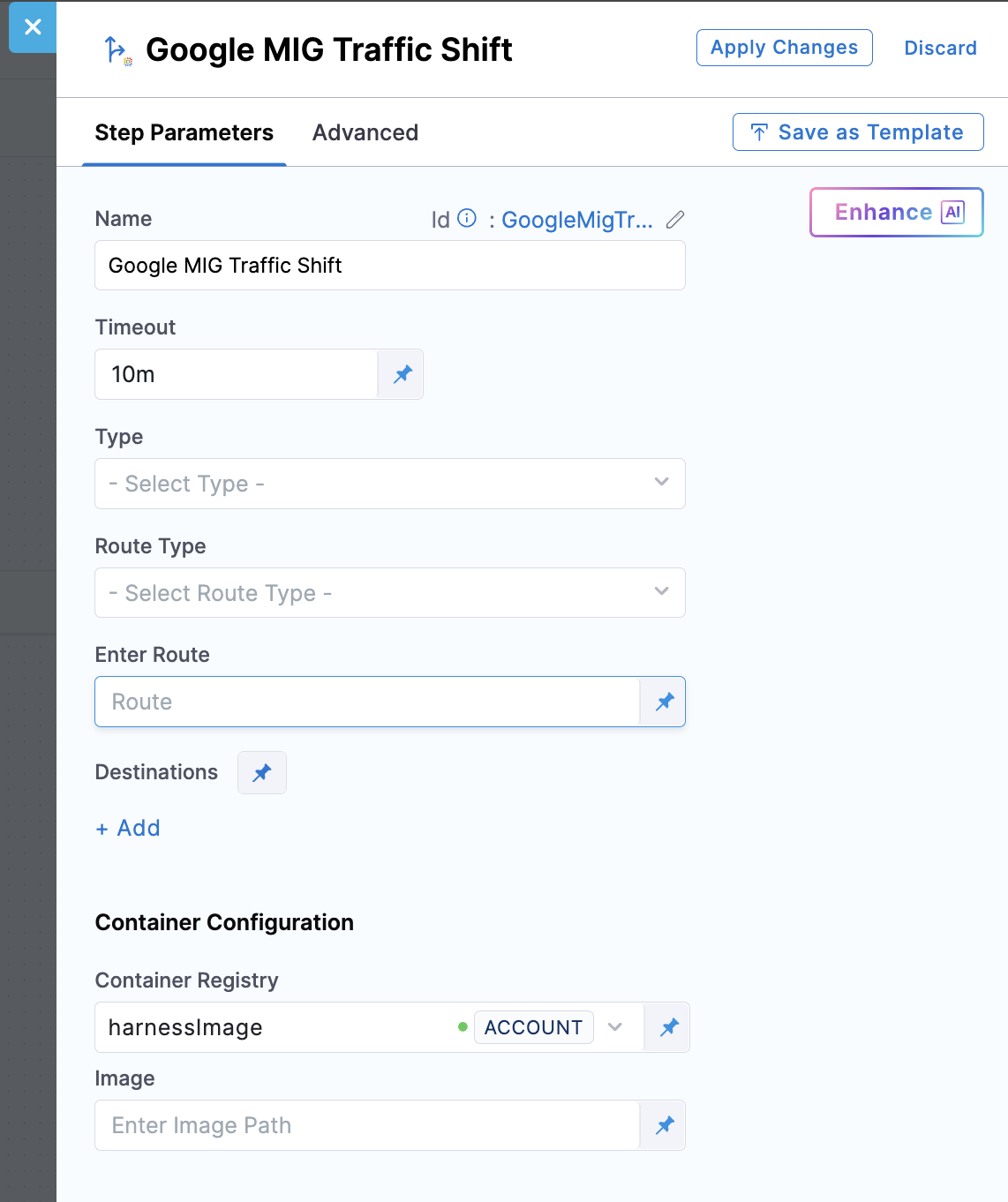
Step parameters:
Type: This field specifies the mechanism used to control traffic distribution between your stable and stage environments. Currently, only CSM (Cloud Service Mesh) is supported, which adjusts weights on your HTTPRoute or GRPCRoute resources, providing fine-grained control ideal for service-to-service (east-west) traffic and microservice architectures. CSM supports advanced features like header-based routing and A/B testing.
Route Type: Specify the type of Cloud Service Mesh route resource that Harness will update with new traffic weights. The HTTPRoute option works for HTTP and HTTPS services, allowing path-based and header-based routing in addition to weighted traffic distribution. The GRPCRoute option specifically serves gRPC services with support for method-level routing. This field only applies when you set the Type field to CSM. The route must be properly configured with both backend services (stable and stage) as destinations before traffic shifting. Harness modifies the weight values while preserving other route configurations.
Enter Route: Specify the full GCP resource path to the Cloud Service Mesh route that controls traffic flow to your application (format: projects/PROJECT_ID/locations/global/httpRoutes/ROUTE_NAME or projects/PROJECT_ID/locations/global/grpcRoutes/ROUTE_NAME). Harness updates the weights in this route's rule configuration to shift traffic between stable and stage environments. The route must already exist, be properly configured with both backend services as weighted destinations, and have appropriate mesh associations. Verify the route path is correct before deployment to avoid traffic disruption.
Destinations: Define the traffic distribution percentages between your environments by adding multiple destinations with weight values that total 100%. For destinations, you can provide the full backend service path (e.g., projects/PROJECT_ID/regions/REGION/backendServices/SERVICE_NAME) or use placeholders like stable and stage. For example, setting Stable=90 and Stage=10 sends 90% of requests to the stable environment and 10% to stage. Use gradual shifts across multiple traffic shift steps (e.g., Step 1: 80/20, Step 2: 50/50, Step 3: 0/100) to safely validate new versions under increasing load. The weights are applied to Cloud Service Mesh routes. Monitor application metrics between shifts to catch issues early.
Container Configuration:
Container Registry: Harness connector for authenticating to your container registry (Docker Hub, GCR, GAR, ECR). This connector pulls the deployment plugin image that executes the deployment operations.
Image: Full path to the deployment plugin container image for this step. Use the official Harness image: harness/google-mig-traffic-shift:0.0.1-linux-amd64 for traffic shifting operations.
YAML Example
        - step:
    identifier: traffic_shift_100
            type: GoogleMigTrafficShift
    name: Traffic_Shift_100
            spec:
              trafficConfig:
                type: CSM
                spec:
          type: GRPCRoute
          route: projects/PROJECT_ID/locations/global/grpcRoutes/ROUTE_NAME
          destinations:
            - destination: stable
              weight: 0
            - destination: stage
              weight: 100
      connectorRef: GCP_CONNECTOR_ID
      image: harness/google-mig-traffic-shift:0.0.1-linux-amd64
      imagePullPolicy: Always
      resources:
        limits:
          memory: 512Mi
          cpu: 0.5
      outputVariables: []
Gradual traffic shifting
For safe production rollouts, you can add multiple Google MIG Traffic Shift steps with increasing traffic percentages:
Example phased rollout:
- Traffic Shift 1: 10% to stage, 90% to stable (validation with minimal risk)
- Traffic Shift 2: 50% to stage, 50% to stable (balanced load testing)
- Traffic Shift 3: 100% to stage, 0% to stable (full cutover)
Between each shift, you can:
- Monitor application metrics and error rates
- Run verification steps or manual approvals
- Add custom scripts or API calls for validation
- Roll back if issues are detected
YAML example with gradual shift:
- step:
    name: Traffic Shift - 10%
    type: GoogleMigTrafficShift
    spec:
                  destinations:
        - environment: stable
          weight: 90
        - environment: stage
          weight: 10

        - step:
    name: Approval - Validate 10%
    type: HarnessApproval
            spec:
      approvalMessage: Validate metrics before proceeding to 50%

        - step:
    name: Traffic Shift - 50%
            type: GoogleMigTrafficShift
            spec:
      destinations:
        - environment: stable
          weight: 50
        - environment: stage
          weight: 50

- step:
    name: Traffic Shift - 100%
    type: GoogleMigTrafficShift
                spec:
                  destinations:
        - environment: stable
                      weight: 0
        - environment: stage
                      weight: 100
Rollback Step
One of the most powerful features of Blue-Green deployment is instant rollback capability. With Harness, you're never more than 30 seconds away from a working state, providing a critical safety net for production deployments.
When to rollback
Rollback is triggered automatically when a deployment step fails. This can occur due to:
- Failed health checks for the new instances
- Deployment step failures or timeouts
- Infrastructure issues preventing successful deployment
- Any critical errors during the deployment process
The advantage of Blue-Green deployment is that your previous version remains running and ready to receive traffic again immediately.
How rollback works
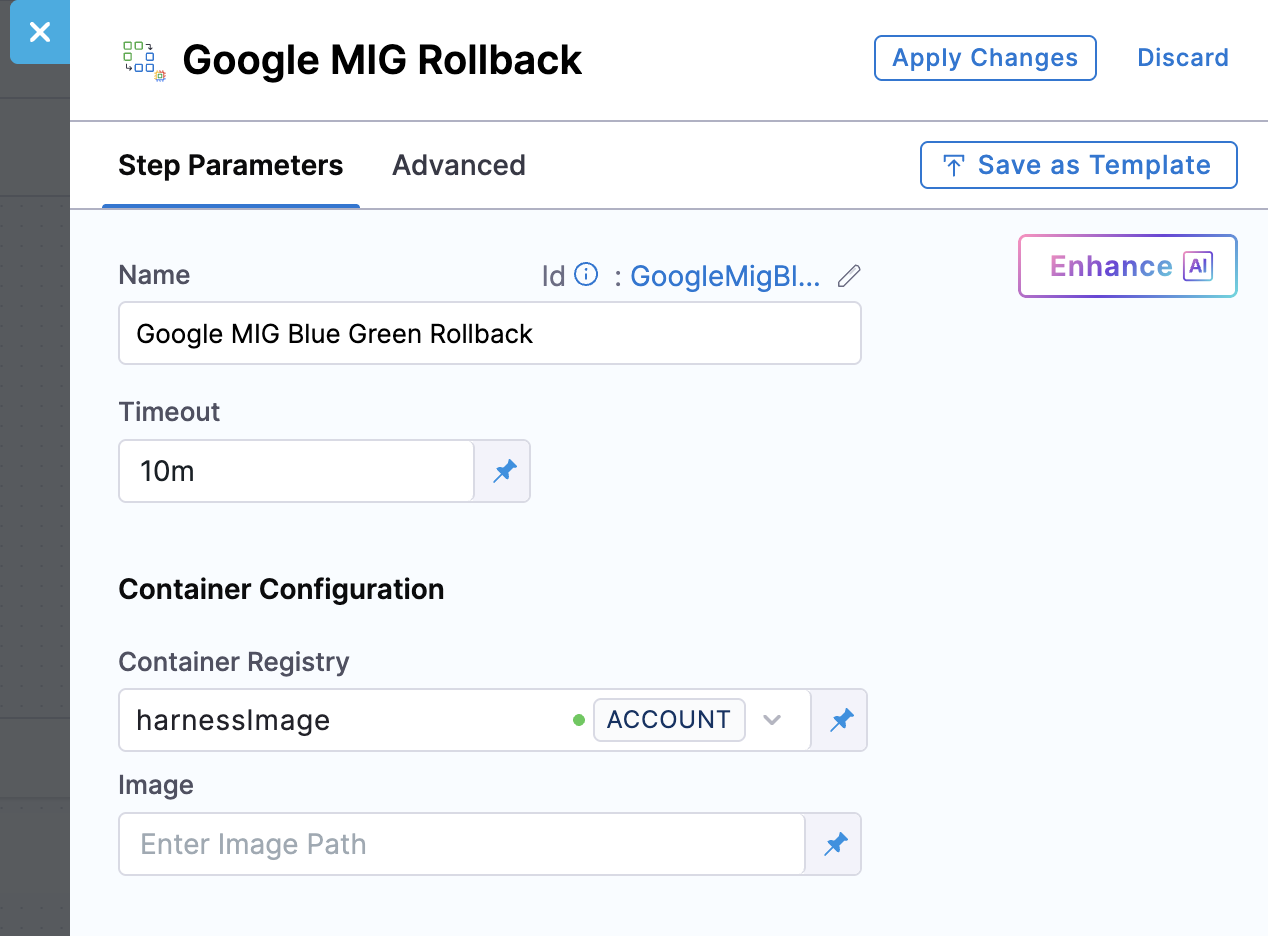
Harness provides the GoogleMigBlueGreenRollback step that you configure in your pipeline's rollback section. This step triggers automatically when any deployment step fails. The step uses the rollback data captured during the Blue Green Deploy step, which includes a complete snapshot of your previous configuration state.
Rollback execution process
When you execute a rollback, Harness performs the following operations:
Phase 1: Retrieve rollback data
Harness retrieves the deployment state captured during the Blue Green Deploy step, including the previous MIG configuration, backend service settings, autoscaler policy, and traffic routing configuration.
Phase 2: Restore traffic routing
Harness immediately updates the HTTPRoute or GRPCRoute to shift 100% of traffic back to the stable environment (the version that was working before). This traffic shift happens in seconds, quickly routing users away from the problematic version.
Phase 3: Restore environment configuration
Harness restores the stage MIG to the previous instance template version, updates the autoscaler restores The configuration returns to its original settings and reverts the MIG labels that identify stable versus stage environments. Optionally, you can configure the step to delete any newly created resources by setting the deleteNewResources parameter.
Configuring rollback
Configure the GoogleMigBlueGreenRollback step in the Rollback Steps section of your pipeline. The step triggers automatically when any deployment step fails.
Configuration options:
- deleteNewResources: Set to
trueto remove any resources created during the failed deployment - preserveCapacity: Set to
trueto maintain the stage environment capacity for troubleshooting, orfalseto scale it down and save costs
Container Configuration:
- Container Registry: Harness connector for authenticating to your container registry
- Image: Use the official Harness image:
harness/google-mig-bluegreen-rollback:0.0.1-linux-amd64for rollback operations
YAML example:
      rollbackSteps:
        - step:
            type: GoogleMigBlueGreenRollback
      name: Rollback on Failure
      identifier: rollback_on_failure
            spec:
        deleteNewResources: true
        preserveCapacity: false
        connectorRef: GCP_CONNECTOR_ID
        image: harness/google-mig-bluegreen-rollback:0.0.1-linux-amd64
        imagePullPolicy: Always
        resources:
          limits:
            memory: 512Mi
            cpu: 0.5
            timeout: 15m
Complete pipeline examples
Basic Blue-Green deployment pipeline
This example shows a complete Blue-Green deployment pipeline with automatic rollback configuration. The pipeline deploys a new version to the stage environment, verifies it reaches steady state, and shifts 100% traffic in a single step.
Complete Pipeline YAML Example
pipeline:
  projectIdentifier: PROJECT_ID
  orgIdentifier: ORG_ID
  tags: {}
  stages:
    - stage:
        name: Deploy
        identifier: Deploy
        description: Blue-Green MIG Deployment
        type: Deployment
        spec:
          deploymentType: GoogleManagedInstanceGroup
          service:
            serviceRef: MIG_SERVICE_REF
            serviceInputs:
              serviceDefinition:
                type: GoogleManagedInstanceGroup
                spec:
                  artifacts:
                    primary:
                      primaryArtifactRef: <+input>
                      sources: <+input>
          environment:
            environmentRef: ENVIRONMENT_REF
            deployToAll: false
            infrastructureDefinitions:
              - identifier: INFRA_ID
          execution:
            steps:
              - stepGroup:
                  steps:
                    - step:
                        type: DownloadManifests
                        name: DownloadManifests
                        identifier: DownloadManifests
                        spec: {}
                        failureStrategies: []
                    - step:
                        type: GoogleMigBlueGreenDeploy
                        name: BlueGreen_Deploy
                        identifier: BlueGreen_Deploy
                        spec:
                          blueEnvironment:
                            backendService: projects/PROJECT_ID/locations/global/backendServices/BACKEND_SERVICE_NAME
                            mig: MIG_NAME
                          trafficConfig:
                            type: CSM
                            spec:
                              type: GRPCRoute
                              route: projects/PROJECT_ID/locations/global/grpcRoutes/ROUTE_NAME
                          targetSize: 1
                          connectorRef: GCP_CONNECTOR_ID
                          image: harness/google-mig-bluegreen-deploy:0.0.1-linux-amd64
                          imagePullPolicy: Always
                          resources:
                            limits:
                              memory: 512Mi
                              cpu: 0.5
                          outputVariables: []
                        timeout: 10m
                    - step:
                        identifier: mig_steady_state_check
                        type: GoogleMigSteadyState
                        name: Steady_State_Check
                        spec:
                          mig: <+pipeline.stages.Deploy.spec.execution.steps.Google_MIG_Step_Group.steps.BlueGreen_Deploy.GoogleMigBlueGreenDeployOutcome.stageMig>
                          instanceTemplate: <+pipeline.stages.Deploy.spec.execution.steps.Google_MIG_Step_Group.steps.BlueGreen_Deploy.GoogleMigBlueGreenDeployOutcome.rollbackData.deploymentMetadata.stage.instanceTemplate>
                          connectorRef: GCP_CONNECTOR_ID
                          image: harness/google-mig-steady-state:0.0.1-linux-amd64
                          imagePullPolicy: Always
                          resources:
                            limits:
                              memory: 512Mi
                              cpu: 0.5
                          outputVariables: []
                    - step:
                        identifier: traffic_shift_100
                        type: GoogleMigTrafficShift
                        name: Traffic_Shift_100
                        spec:
                          trafficConfig:
                            type: CSM
                            spec:
                              type: GRPCRoute
                              route: projects/PROJECT_ID/locations/global/grpcRoutes/ROUTE_NAME
                              destinations:
                                - destination: stable
                                  weight: 0
                                - destination: stage
                                  weight: 100
                          connectorRef: GCP_CONNECTOR_ID
                          image: harness/google-mig-traffic-shift:0.0.1-linux-amd64
                          imagePullPolicy: Always
                          resources:
                            limits:
                              memory: 512Mi
                              cpu: 0.5
                          outputVariables: []
                  name: Google MIG Step Group
                  identifier: Google_MIG_Step_Group
                  stepGroupInfra:
                    type: KubernetesDirect
                    spec:
                      connectorRef: K8S_CONNECTOR_ID
                      namespace: NAMESPACE
                      serviceAccountName: SERVICE_ACCOUNT_NAME
                      automountServiceAccountToken: true
            rollbackSteps:
              - stepGroup:
                  name: Google Mig Rollback
                  identifier: Google_Mig_Rollback
                  steps:
                    - step:
                        type: GoogleMigBlueGreenRollback
                        name: GoogleMigBlueGreenRollback_1
                        identifier: GoogleMigBlueGreenRollback_1
                        spec:
                          connectorRef: GCP_CONNECTOR_ID
                          image: harness/google-mig-bluegreen-rollback:0.0.1-linux-amd64
                        timeout: 10m
                  stepGroupInfra:
                    type: KubernetesDirect
                    spec:
                      connectorRef: K8S_CONNECTOR_ID
                      namespace: NAMESPACE
                      serviceAccountName: SERVICE_ACCOUNT_NAME
                      automountServiceAccountToken: true
        tags: {}
        failureStrategies:
          - onFailure:
              errors:
                - AllErrors
              action:
                type: StageRollback
  delegateSelectors:
    - DELEGATE_SELECTOR
  identifier: PIPELINE_ID
  name: Blue-Green MIG Deployment Pipeline
Gradual traffic shifting pipeline
This example demonstrates a phased rollout approach with gradual traffic shifting. The pipeline deploys to the stage environment and then gradually shifts traffic: 20% → 50% → 100%. This allows you to validate the new version at each traffic level before increasing exposure, making it ideal for production deployments that aim to minimize risk.
Complete Pipeline YAML Example for Gradual Traffic Shifting
pipeline:
  projectIdentifier: PROJECT_ID
  orgIdentifier: ORG_ID
  tags: {}
  stages:
    - stage:
        name: Deploy
        identifier: Deploy
        description: Gradual Traffic Shift (20% -> 50% -> 100%)
        type: Deployment
        spec:
          deploymentType: GoogleManagedInstanceGroup
          service:
            serviceRef: MIG_SERVICE_REF
            serviceInputs:
              serviceDefinition:
                type: GoogleManagedInstanceGroup
                spec:
                  artifacts:
                    primary:
                      primaryArtifactRef: <+input>
                      sources: <+input>
          environment:
            environmentRef: ENVIRONMENT_REF
            deployToAll: false
            infrastructureDefinitions:
              - identifier: INFRA_ID
          execution:
            steps:
              - stepGroup:
                  steps:
                    - step:
                        type: DownloadManifests
                        name: DownloadManifests
                        identifier: DownloadManifests
                        spec: {}
                        failureStrategies: []
                    - step:
                        type: GoogleMigBlueGreenDeploy
                        name: BlueGreen_Deploy
                        identifier: BlueGreen_Deploy
                        spec:
                          blueEnvironment:
                            backendService: projects/PROJECT_ID/locations/global/backendServices/BACKEND_SERVICE_NAME
                            mig: MIG_NAME
                          trafficConfig:
                            type: CSM
                            spec:
                              type: GRPCRoute
                              route: projects/PROJECT_ID/locations/global/grpcRoutes/ROUTE_NAME
                          targetSize: 1
                          connectorRef: GCP_CONNECTOR_ID
                          image: harness/google-mig-bluegreen-deploy:0.0.1-linux-amd64
                          imagePullPolicy: Always
                          resources:
                            limits:
                              memory: 512Mi
                              cpu: 0.5
                          outputVariables: []
                        timeout: 10m
                    - step:
                        identifier: mig_steady_state_check
                        type: GoogleMigSteadyState
                        name: Steady_State_Check
                        spec:
                          mig: <+pipeline.stages.Deploy.spec.execution.steps.Google_MIG_Step_Group.steps.BlueGreen_Deploy.GoogleMigBlueGreenDeployOutcome.stageMig>
                          instanceTemplate: <+pipeline.stages.Deploy.spec.execution.steps.Google_MIG_Step_Group.steps.BlueGreen_Deploy.GoogleMigBlueGreenDeployOutcome.rollbackData.deploymentMetadata.stage.instanceTemplate>
                          connectorRef: GCP_CONNECTOR_ID
                          image: harness/google-mig-steady-state:0.0.1-linux-amd64
                          imagePullPolicy: Always
                          resources:
                            limits:
                              memory: 512Mi
                              cpu: 0.5
                          outputVariables: []
                    - step:
                        identifier: traffic_shift_20
                        type: GoogleMigTrafficShift
                        name: Traffic_Shift_20_Percent
                        spec:
                          trafficConfig:
                            type: CSM
                            spec:
                              type: GRPCRoute
                              route: projects/PROJECT_ID/locations/global/grpcRoutes/ROUTE_NAME
                              destinations:
                                - destination: stable
                                  weight: 80
                                - destination: stage
                                  weight: 20
                          connectorRef: GCP_CONNECTOR_ID
                          image: harness/google-mig-traffic-shift:0.0.1-linux-amd64
                          imagePullPolicy: Always
                          resources:
                            limits:
                              memory: 512Mi
                              cpu: 0.5
                          outputVariables: []
                    - step:
                        identifier: traffic_shift_50
                        type: GoogleMigTrafficShift
                        name: Traffic_Shift_50_Percent
                        spec:
                          trafficConfig:
                            type: CSM
                            spec:
                              type: GRPCRoute
                              route: projects/PROJECT_ID/locations/global/grpcRoutes/ROUTE_NAME
                              destinations:
                                - destination: stable
                                  weight: 50
                                - destination: stage
                                  weight: 50
                          connectorRef: GCP_CONNECTOR_ID
                          image: harness/google-mig-traffic-shift:0.0.1-linux-amd64
                          imagePullPolicy: Always
                          resources:
                            limits:
                              memory: 512Mi
                              cpu: 0.5
                          outputVariables: []
                    - step:
                        identifier: traffic_shift_100
                        type: GoogleMigTrafficShift
                        name: Traffic_Shift_100_Percent
                        spec:
                          trafficConfig:
                            type: CSM
                            spec:
                              type: GRPCRoute
                              route: projects/PROJECT_ID/locations/global/grpcRoutes/ROUTE_NAME
                              destinations:
                                - destination: stable
                                  weight: 0
                                - destination: stage
                                  weight: 100
                          connectorRef: GCP_CONNECTOR_ID
                          image: harness/google-mig-traffic-shift:0.0.1-linux-amd64
                          imagePullPolicy: Always
                          resources:
                            limits:
                              memory: 512Mi
                              cpu: 0.5
                          outputVariables: []
                  name: Google MIG Step Group
                  identifier: Google_MIG_Step_Group
                  stepGroupInfra:
                    type: KubernetesDirect
                    spec:
                      connectorRef: K8S_CONNECTOR_ID
                      namespace: NAMESPACE
                      serviceAccountName: SERVICE_ACCOUNT_NAME
                      automountServiceAccountToken: true
            rollbackSteps: []
        tags: {}
        failureStrategies:
          - onFailure:
              errors:
                - AllErrors
              action:
                type: StageRollback
  delegateSelectors:
    - DELEGATE_SELECTOR
  identifier: PIPELINE_ID
  name: Gradual Traffic Shift MIG Pipeline