Configure Service and Environment for MIG Deployments
This guide walks you through configuring your service, environment, and infrastructure for Google Cloud Managed Instance Group deployments in Harness.
Create a CD pipeline
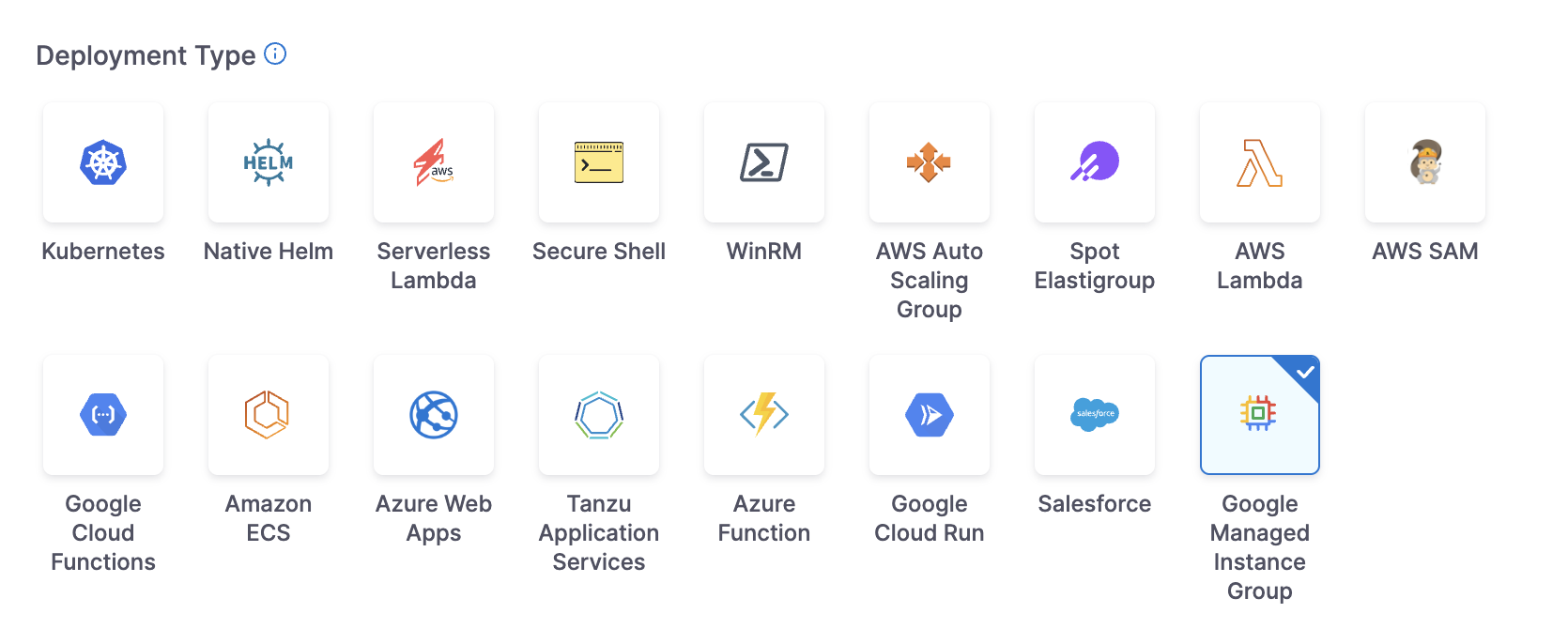
Setting up a MIG deployment starts with creating a new Continuous Delivery pipeline in Harness. Navigate to your project and create a new CD pipeline, then add a Deploy stage. When Harness prompts you to select the deployment type, choose Google Managed Instance Group from the available options. This selection ensures that Harness configures the stage with MIG-specific capabilities and deployment steps.
Configure the service
The service definition contains all the configuration needed to deploy your MIG, including instance templates, MIG configuration, autoscaling settings, and health checks. These manifests define your infrastructure as code, allowing you to version control and consistently replicate your MIG deployments across environments.
Add or select a service
After creating your Deploy stage, click Set Up Stage to begin configuring the service. In the Service tab, either add a new service or select an existing one.
When creating a new service:
- Within a pipeline: Harness automatically uses the deployment type configured in the Deploy stage (Google Managed Instance Group). Provide a descriptive Service Name and an optional Description.
- As a standalone service: You need to select Google Managed Instance Group as the deployment type, then provide the Service Name and Description.
The service definition will contain all the manifests and artifacts Harness needs to deploy your MIG.
Add MIG manifests
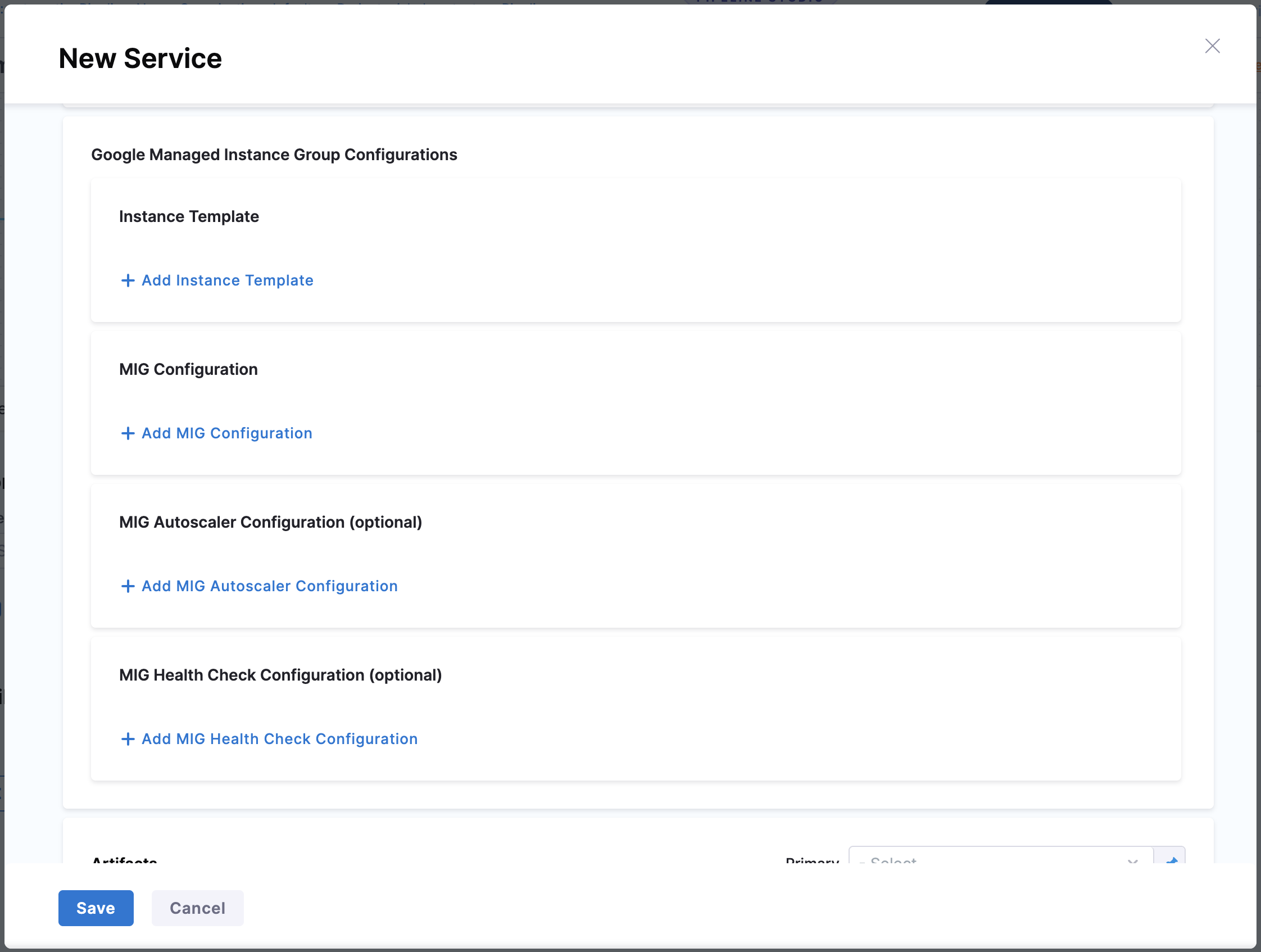
Google Managed Instance Groups require specific manifest files that define your instance configuration. Harness supports up to four types of manifests for comprehensive MIG management. Two manifests—Instance Template and MIG Configuration—are required for every deployment, while Autoscaler Configuration and Health Check Configuration are optional but highly recommended for production workloads.
1. Instance Template
The Instance Template defines the complete VM configuration for every instance in your MIG. It includes machine type (e.g., e2-micro, n1-standard-1), boot disk image and size, network interfaces, startup scripts, metadata, and labels. This template acts as the blueprint that ensures consistency across your entire deployment—every VM instance inherits these exact specifications. All MIG deployments require an instance template. When you update this template with a new version, Harness triggers a rolling update of instances in the MIG according to your configured update policy.
The GCP Instance Templates API supports a wide range of configuration options. You can specify advanced settings like custom machine types, multiple network interfaces, persistent disks, GPUs, preemptible instances, and more. Define your template in JSON format and reference it in your Harness service definition.
To add an Instance Template:
Click + Add Instance Template, select your manifest source (Harness File Store, Git, or other supported sources), and provide the file path to your instance template JSON file.
Example: Instance Template JSON
{
  "name": "my-app-template",
  "description": "Instance template for my application",
  "properties": {
    "machineType": "e2-medium",
    "disks": [
      {
        "boot": true,
        "autoDelete": true,
        "initializeParams": {
          "sourceImage": "projects/my-project/global/images/my-app-v1",
          "diskSizeGb": "10",
          "diskType": "pd-standard"
        }
      }
    ],
    "networkInterfaces": [
      {
        "network": "global/networks/default",
        "accessConfigs": [
          {
            "name": "External NAT",
            "type": "ONE_TO_ONE_NAT"
          }
        ]
      }
    ],
    "metadata": {
      "items": [
        {
          "key": "startup-script",
          "value": "#!/bin/bash\nsudo systemctl start my-app"
        },
        {
          "key": "app-version",
          "value": "v1.0.0"
        }
      ]
    },
    "tags": {
      "items": ["http-server", "https-server"]
    },
    "labels": {
      "environment": "production",
      "app": "my-app",
      "managed-by": "harness"
    },
    "serviceAccounts": [
      {
        "email": "my-service-account@my-project.iam.gserviceaccount.com",
        "scopes": [
          "https://www.googleapis.com/auth/cloud-platform"
        ]
      }
    ]
  }
}
Key fields:
name: Template name (referenced when creating/updating MIGs)properties.machineType: VM size (e.g.,e2-medium,n1-standard-1)properties.disks: Boot and additional disks configurationproperties.disks[].initializeParams.sourceImage: VM image to useproperties.networkInterfaces: Network and subnet configurationproperties.metadata.items: Startup scripts and custom metadataproperties.tags.items: Network tags for firewall rulesproperties.labels: Resource labels for organization and billingproperties.serviceAccounts: Service account and API access scopes
2. MIG Configuration
The MIG Configuration controls how your MIG operates and updates instances. Key settings include the distribution policy (which determines how GCP spreads instances across zones), the update policy (PROACTIVE or OPPORTUNISTIC), instance redistribution strategy, and update constraints such as maxSurge and maxUnavailable. The update policy determines how aggressively Harness deploys new versions—PROACTIVE updates instances immediately, while OPPORTUNISTIC waits for instances to recreate naturally. Every MIG deployment requires this configuration.
The GCP Instance Group Managers API provides extensive configuration options. You can define stateful policies for persistent disks, configure autohealing behavior, set up rolling update parameters, and specify zone distribution strategies. For regional MIGs, the distribution policy ensures GCP balances instances evenly across multiple zones, providing high availability and resilience against zone failures.
To add MIG Configuration:
Click + Add MIG Configuration, select your manifest source, and provide the file path to your MIG configuration JSON file.
Example: MIG Configuration JSON
{
  "name": "my-app-mig",
  "description": "Managed instance group for my application",
  "baseInstanceName": "my-app-instance",
  "targetSize": 3,
  "distributionPolicy": {
    "targetShape": "EVEN",
    "zones": [
      {"zone": "us-central1-a"},
      {"zone": "us-central1-b"},
      {"zone": "us-central1-c"}
    ]
  },
  "updatePolicy": {
    "type": "PROACTIVE",
    "instanceRedistributionType": "PROACTIVE",
    "minimalAction": "REPLACE",
    "maxSurge": {
      "fixed": 3
    },
    "maxUnavailable": {
      "fixed": 0
    },
    "replacementMethod": "SUBSTITUTE"
  },
  "statefulPolicy": {
    "preservedState": {}
  }
}
Key fields:
targetSize: Initial number of instances (can be overridden by autoscaler)distributionPolicy.targetShape: How instances are distributed (EVEN,BALANCED,ANY)updatePolicy.type:PROACTIVE(immediate updates) orOPPORTUNISTIC(gradual updates)updatePolicy.minimalAction:RESTART,REPLACE, orREFRESHmaxSurge: Extra instances created during updatesmaxUnavailable: Maximum instances that can be unavailable during updates
3. MIG Autoscaler Configuration (Optional)
This optional configuration enables automatic scaling of your MIG based on real-time metrics. You can configure scaling triggers that monitor CPU utilization, load-balancing serving capacity, or custom Cloud Monitoring metrics. Additional settings include minimum and maximum replica counts, cooldown periods between scaling events, and scale-in controls that prevent rapid downscaling. When you configure autoscaling, GCP automatically adjusts the number of instances to match demand, ensuring optimal performance while controlling costs. This configuration is highly recommended for production workloads with variable traffic patterns.
The GCP Autoscalers API supports multiple scaling policies. You can combine CPU-based scaling with load balancer utilization, set up predictive autoscaling to handle traffic spikes proactively, or use custom Cloud Monitoring metrics that reflect your application's specific performance indicators. The autoscaler continuously evaluates these metrics and scales your MIG up or down to maintain your target utilization levels.
To add Autoscaler Configuration:
Click + Add MIG Autoscaler Configuration, select your manifest source, and provide the file path to your autoscaler configuration JSON file.
Example: Autoscaler Configuration JSON
{
  "name": "my-app-autoscaler",
  "description": "Autoscaler for my application",
  "target": "projects/my-project/regions/us-central1/instanceGroupManagers/my-app-mig",
  "autoscalingPolicy": {
    "minNumReplicas": 2,
    "maxNumReplicas": 10,
    "coolDownPeriodSec": 60,
    "cpuUtilization": {
      "utilizationTarget": 0.7,
      "predictiveMethod": "NONE"
    },
    "loadBalancingUtilization": {
      "utilizationTarget": 0.8
    },
    "mode": "ON",
    "scaleInControl": {
      "maxScaledInReplicas": {
        "fixed": 2
      },
      "timeWindowSec": 300
    }
  }
}
Key fields:
minNumReplicas: Minimum number of instances (even under low load)maxNumReplicas: Maximum number of instances (even under high load)coolDownPeriodSec: Wait time between scaling actionscpuUtilization.utilizationTarget: Target CPU utilization (0.0 to 1.0)scaleInControl: Prevents aggressive scale-down
4. MIG Health Check Configuration (Optional)
This optional configuration defines how GCP monitors the health of individual instances in your MIG. You can specify the check type (HTTP, HTTPS, TCP, or SSL), port, request path, check interval, timeout, and healthy/unhealthy thresholds. GCP continuously probes each instance according to your health check settings. When instances fail consecutive health checks, the MIG's autohealing mechanism automatically marks them as unhealthy and recreates them with fresh instances. This ensures your application maintains high availability and automatically recovers from instance failures. We strongly recommend configuring health checks for production workloads.
The GCP Health Checks API provides flexible monitoring options. You can configure different health check protocols depending on your application architecture—use HTTP/HTTPS checks for web services, TCP checks for database connections, or SSL checks for secure services. Advanced settings let you fine-tune the check frequency, response timeout, and the number of consecutive failures required before GCP marks an instance as unhealthy.
To add Health Check Configuration:
Click + Add MIG Health Check Configuration, select your manifest source, and provide the file path to your health check configuration JSON file.
Example: Health Check Configuration JSON
{
  "name": "my-app-health-check",
  "description": "Health check for my application",
  "checkIntervalSec": 10,
  "timeoutSec": 5,
  "healthyThreshold": 2,
  "unhealthyThreshold": 3,
  "type": "HTTP",
  "httpHealthCheck": {
    "port": 80,
    "requestPath": "/health",
    "proxyHeader": "NONE",
    "response": "healthy"
  }
}
Key fields:
checkIntervalSec: Frequency of health checkshealthyThreshold: Consecutive successes needed to mark healthyunhealthyThreshold: Consecutive failures needed to mark unhealthyhttpHealthCheck.requestPath: Endpoint to check for HTTP health checks
For HTTPS, TCP, or SSL health checks, use httpsHealthCheck, tcpHealthCheck, or sslHealthCheck respectively.
Configure artifacts
Harness needs to know which GCP Compute Engine image to use for your MIG instances. Currently, only Google Compute Engine (GCE) Image artifacts are supported for MIG deployments. The artifact configuration can override the image specified in your instance template, giving you flexibility to deploy different image versions without modifying the template.
To configure a GCE Image artifact:
- In the Artifacts section, click Add Primary Artifact. Harness automatically selects Google Compute Engine Image as the artifact source.
- In the Artifact Registry tab, configure the GCP Connector: Select your Harness GCP connector that has access to the project containing your images.
- In the Artifact Details tab, configure the following:
-
Project: Enter the GCP project ID where your compute engine images are stored. This supports fixed values, expressions, or runtime input.
-
Labels (Optional): Add labels to filter images in key-value format (e.g.,
environment=production). You can add multiple labels to narrow down the image selection. -
Filters (Optional): Specify GCP filter expressions to further refine image selection (e.g.,
name=my-app-image-*). This uses the standard GCP filter syntax. -
Version Selection Method: Choose how Harness should select the image version:
- Version (Dropdown): Harness fetches available images from your project based on the labels and filters you configured. Select a specific image version from the dropdown. This stores the version as a static value.
- Version Regex: Enter a regex pattern manually (e.g.,
my-app-image-.*-v\d+). At deployment time, Harness resolves the latest image version that matches your regex pattern. This is useful for automatically deploying the latest image without manual selection.
Example artifact configuration:
artifacts:
  primary:
    primaryArtifactRef: <+input>
    sources:
      - identifier: gceimage
        spec:
          connectorRef: my_gcp_connector
          project: my-gcp-project
          versionRegex: my-app-image-.*
        type: GceImage
Service YAML example
Complete Service YAML
service:
  name: my-mig-service
  identifier: my_mig_service
  orgIdentifier: default
  projectIdentifier: my_project
  serviceDefinition:
    type: GoogleManagedInstanceGroup
    spec:
      manifests:
        - manifest:
            identifier: instancetemplate
            type: GoogleMigInstanceTemplate
            spec:
              store:
                type: Github
                spec:
                  connectorRef: my_github_connector
                  gitFetchType: Branch
                  paths:
                    - mig/my-project/instance-template.json
                  repoName: my-repo
                  branch: main
        - manifest:
            identifier: migconfig
            type: GoogleMigConfiguration
            spec:
              store:
                type: Github
                spec:
                  connectorRef: my_github_connector
                  gitFetchType: Branch
                  paths:
                    - mig/my-project/mig-manifest.json
                  repoName: my-repo
                  branch: main
        - manifest:
            identifier: migautoscaler
            type: GoogleMigAutoscalerConfiguration
            spec:
              store:
                type: Github
                spec:
                  connectorRef: my_github_connector
                  gitFetchType: Branch
                  paths:
                    - mig/my-project/autoscaler.json
                  repoName: my-repo
                  branch: main
        - manifest:
            identifier: mighealthcheck
            type: GoogleMigHealthCheckConfiguration
            spec:
              store:
                type: Github
                spec:
                  connectorRef: my_github_connector
                  gitFetchType: Branch
                  paths:
                    - mig/my-project/health-check.json
                  repoName: my-repo
                  branch: main
      artifacts:
        primary:
          primaryArtifactRef: <+input>
          sources:
            - identifier: gceimage
              spec:
                connectorRef: my_gcp_connector
                project: my-gcp-project
                versionRegex: my-app-image-.*
              type: GceImage
Configure the environment and infrastructure
After configuring your service with all the necessary manifests and artifacts, you need to define the environment and infrastructure where Harness will deploy your MIG. The environment represents the logical target (such as Production or Staging), while the infrastructure definition specifies the exact GCP project, region, and zone configuration.
Create environment
Navigate to the Environment tab and either create a new environment or select an existing one. If creating a new environment, provide a descriptive Environment Name (such as "Production" or "Staging") and select the environment type—Production or Pre-Production. This classification helps Harness apply appropriate governance policies and approval workflows. After configuring these settings, save the environment.
Configure infrastructure
The infrastructure definition specifies where and how Harness deploys your MIG in GCP. This includes the GCP project, region, and optionally a specific zone for zonal deployments.
In the Infrastructure Definition section, click New Infrastructure and provide a descriptive Infrastructure Name (such as "us-central1-production") that clearly identifies the deployment target.
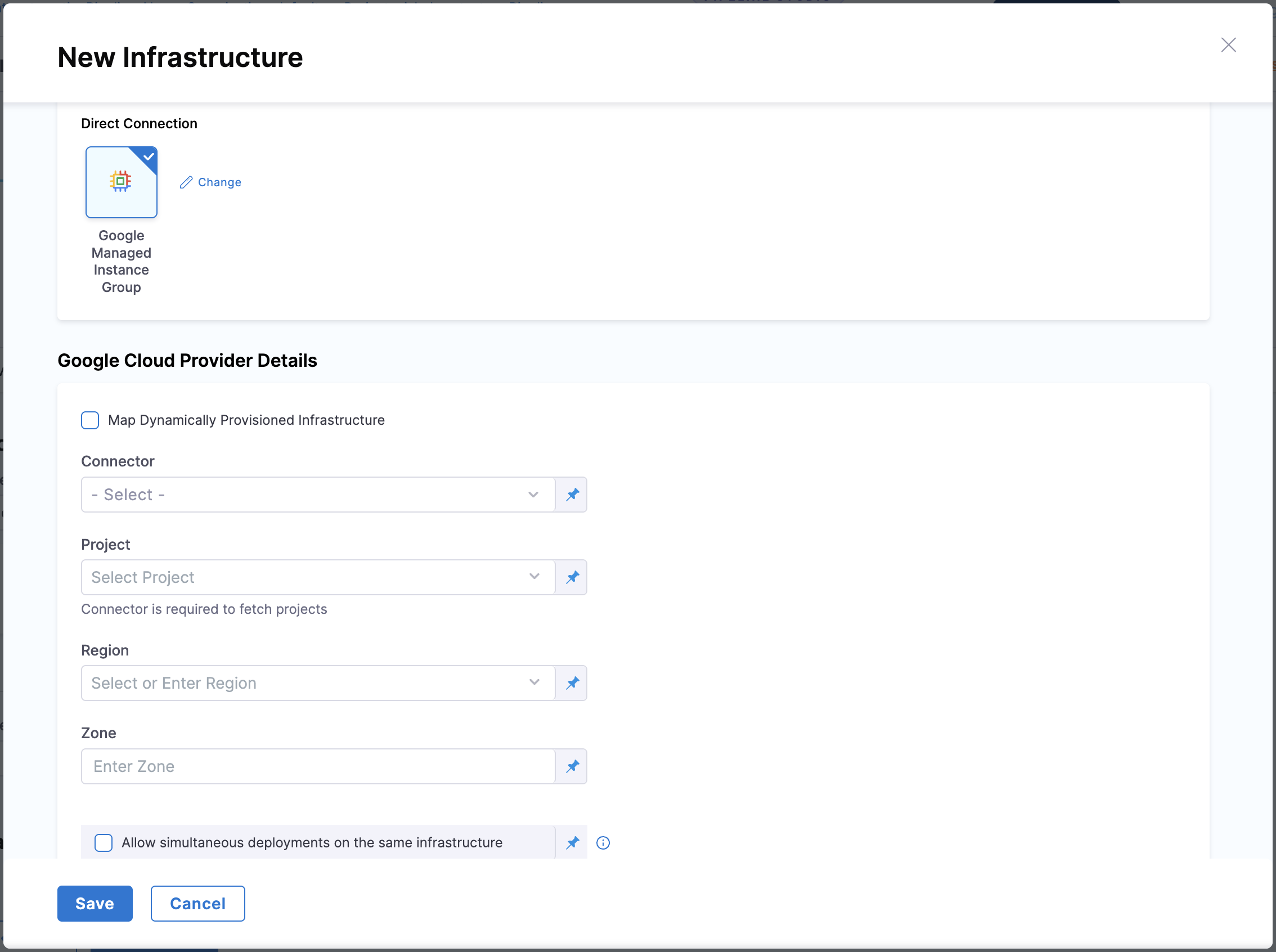
Configure the following GCP-specific details:
GCP Cloud Provider Details
Connector
Select your Harness GCP connector, which provides authentication to your GCP account. This connector uses either OIDC (OpenID Connect) for keyless authentication or a Service Account with JSON key credentials. The connector must have appropriate IAM permissions to create and manage MIGs, backend services, and other GCP resources. If you don't have a connector configured, click + New Connector, choose your preferred authentication method, provide the required credentials, test the connection, and save the connector.
Project
Specify the GCP project ID where Harness will deploy your MIG (such as my-project-123456). This field supports cross-project deployments, meaning you can deploy to a different project than the one configured in your connector. This flexibility allows organizations to use a single connector across multiple GCP projects, simplifying credential management.
Region
Select the GCP region where Harness will deploy your MIG (such as "us-central1" or "europe-west1"). For regional MIGs, GCP automatically distributes instances across multiple zones within this region, providing high availability and resilience. Choose a region close to your users to minimize latency.
Zone (optional)
This field is only required for zonal MIGs. If you're deploying a regional MIG, leave this field empty. For zonal deployments, specify the zone within the selected region (such as "us-central1-a"). Zonal MIGs deploy all instances in a single zone, which is suitable for development and testing environments.
After configuring all these settings, click Save to finalize your infrastructure definition.
GCP authentication support
Harness supports two primary authentication methods for connecting to your GCP account, each with distinct advantages depending on your security requirements and operational preferences.
Google OIDC Support
OpenID Connect (OIDC) provides secure, keyless authentication using workload identity federation. This approach eliminates the need to manage and rotate service account keys, significantly reducing security risks and simplifying credential management. We strongly recommend OIDC for production environments as it leverages Google's identity federation to authenticate without storing long-lived credentials.
For detailed configuration steps, see Use OpenID Connect (OIDC) Connector.
Service Account
The traditional Service Account authentication method uses JSON key files containing credentials for a GCP service account. This method works well for getting started quickly or when OIDC isn't available in your environment. When using service account keys, ensure you follow security best practices such as rotating keys regularly and restricting key permissions to only what's necessary.
For detailed configuration steps, see Create a GCP connector.
Cross-project deployments
Harness supports cross-project deployments by default, allowing you to use a single GCP connector to manage MIGs across multiple GCP projects. This capability eliminates the need to create and maintain separate connectors for each project, significantly simplifying credential management in multi-project environments.
When configuring your infrastructure definition, the Project field accepts any valid GCP project ID—either the same project configured in the connector or a different one. The Region field determines where Harness deploys the MIG within that project. This separation allows maximum flexibility in organizing your GCP resources while maintaining centralized authentication.
Prerequisite: For OIDC-based connectors, ensure the associated service account has been granted appropriate IAM permissions in both the connector's project and the target deployment projects to access and manage resources across projects.
Next steps
Now that you've configured your service, environment, and infrastructure, you can proceed to configure your deployment execution strategy.
Harness currently supports Blue-Green deployment strategy for MIG deployments. When you select this strategy in the Execution tab, Harness automatically adds a step group containing all the necessary deployment steps, including rollback capabilities.
- Blue-Green Deployment Strategy - Configure Blue-Green deployments with automatic step group setup, execution steps, and rollback