Prompt Enhancer
The Prompt Enhancer in Harness AI Test Automation helps you write more effective prompts for creating AI-powered tests. It analyzes your natural language instructions and suggests improvements to make them clearer, more specific, and better suited for AI interpretation.
What is Prompt Enhancer?
Prompt Enhancer is an intelligent assistant that refines your test prompts to improve AI comprehension and test execution accuracy. It transforms vague or ambiguous instructions into well-structured, context-rich prompts that the AI Copilot can execute more reliably.
When enabled, the Prompt Enhancer evaluates your input and provides enhanced suggestions that you can accept, ignore, or edit before execution.
Key capabilities:
- Clarity enhancement - Identifies ambiguous language and suggests specific alternatives
- Context enrichment - Adds missing contextual details to improve AI understanding
- Structure optimization - Organizes complex prompts into logical, actionable steps
- Best practice alignment - Ensures prompts follow recommended patterns for AI test automation
How Prompt Enhancer Works
Enabling Prompt Enhancer
To use the Prompt Enhancer, toggle the Enhance: On option when creating AI tasks. The enhancer works with all types of AI commands including:
- Multi-step AI tasks - Complex workflows with multiple actions
- Single-step tasks - Individual actions or commands
- Assertions - Validation and verification prompts
- Extract data - Data extraction commands
Once enabled, the system will analyze your prompts and provide intelligent suggestions.
The Enhancement Process
When you write a prompt for an AI task or action, the Prompt Enhancer:
- Analyzes your input - Evaluates the clarity, specificity, and completeness of your prompt
- Generates suggestions - Creates an enhanced version with improved structure and details
- Displays prompt suggestion - Shows the enhanced prompt in a suggestion panel
- Provides action options - Offers three ways to proceed:
- Accept - Use the enhanced prompt as-is and proceed with execution
- Ignore - Dismiss the suggestion and use your original prompt
- Edit Suggestions and Run - Modify the enhanced prompt before execution
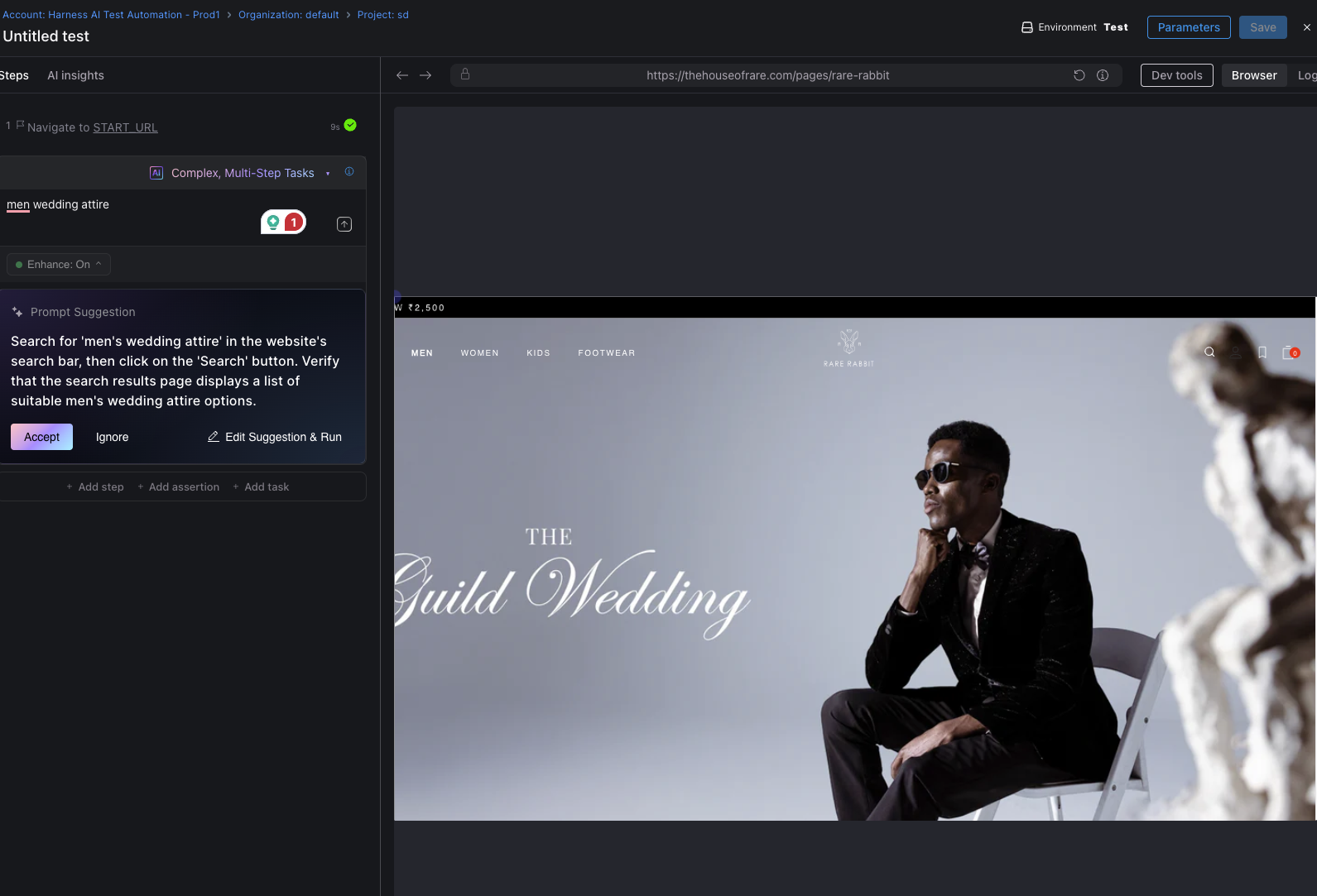
Example Enhancement
Original prompt:
men wedding attire
Enhanced prompt suggestion:
Search for 'men's wedding attire' in the website's search bar, then click on the 'Search' button. Verify that the search results page displays a list of suitable men's wedding attire options.
The enhanced version includes:
- Specific search term ('men's wedding attire')
- Clear action sequence (search → click → verify)
- Target element (website's search bar)
- Validation criteria (verify search results display)
- Expected outcome (list of suitable options)
Another example:
Original prompt:
Add a jacket to the cart
Enhanced prompt:
Add a medium-sized dark navy zipped jacket within the range of ₹3000 to ₹6000 to the cart
The enhanced version includes:
- Size specification (medium)
- Color details (dark navy)
- Style information (zipped)
- Price constraints (₹3000 to ₹6000)
- Clear action (add to cart)
Automatic Execution
When the Prompt Enhancer determines that your prompt is already clear and well-structured, it may automatically proceed with execution without showing suggestions. This happens when:
- All necessary context and details are present
- The action is unambiguous and executable
- Validation criteria are clearly defined
Common Enhancement Patterns
Adding Specificity
| Before Enhancement | After Enhancement |
|---|---|
| Click the button | Click the 'Submit Order' button in the checkout section |
| Enter the email | Enter 'test@example.com' in the email field |
| Select an item | Select the product with name 'Wireless Mouse' |
Including Validation
| Before Enhancement | After Enhancement |
|---|---|
| Complete the checkout | Complete the checkout and verify the order confirmation appears |
| Transfer funds | Transfer $500 from Savings to Checking and verify the updated balance |
| Search for products | Search for 'laptops' and verify at least 5 results are displayed |
Adding Context
| Before Enhancement | After Enhancement |
|---|---|
| Fill the form | Fill the registration form with valid user details including name, email, and password |
| Navigate to settings | From the dashboard, navigate to the account settings page |
| Apply filters | Apply the 'In Stock' and 'Price: Low to High' filters to the product listing |